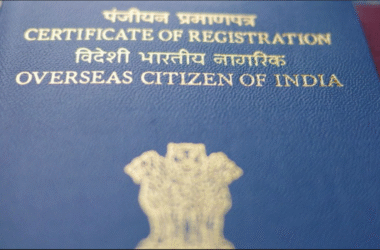

The Government of India has introduced the Overseas Citizen of India (e-OCI) Card to improve the convenience of obtaining OCI credentials. The official OCI Services Portal enables cardholders to generate and download a digital OCI booklet, in addition to the physical booklet.
If you already have a physical OCI card or have been granted approval for an OCI application card, you can download the e-OCI card online to access your documents with ease when travelling to India.
This guide will tell you all about what you need to know, common issues you can expect, and tips to remember before you travel.
How to Download an e-OCI Card Online: Step-by-Step Process?
Follow these steps to generate and download your digital OCI card.
Step 1: Visit the Official OCI Services Portal
Visit the website of the Government of India OCI Services Portal at https://ociservices.gov.in/.
Make sure you are accessing the genuine government website before entering your personal information. Beware of unofficial websites offering instant OCI card downloading at a cost.
Step 2: Log In to Your Account
Click the user log-in option and enter your registered user ID and password.
Use an existing OCI Card account in case the OCI cardholder already has an OCI Card account. If not registered on the portal, please register using the registration instructions and use the email address mentioned in your OCI application or card.
Keep your login details secure and never share your password or one-time password (OTP) with unauthorized individuals.
Step 3: Open the e-OCI Section
Once you have logged in and gained access to your account, click upon your account dashboard.
Check for the e-OCI tab. Click on it for details about your OCI.
Check that the information displayed belongs to the correct cardholder before proceeding.
Step 4: Generate Your e-OCI Card
After you see your OCI information pop up on the screen, find the Generate e-OCI Card option.
Click Create to start generating cards. It may take some time to process your request and generate the digital document, which will be put on the portal.
Avoid refreshing the page or closing the browser while the request is being processed. If it takes longer than anticipated, let it complete before starting over.
Step 5: Download and save the card
Once the e-OCI Card has been successfully generated, follow the instructions on screen to download the e-OCI Card.
Download the file and store it in a safe location. You can also store a copy in a safe digital storage area, allowing you to access it if needed.
It’s recommended to verify the document opens correctly after downloading and that the information read is correct.
Step 6: Keep It Accessible for Travel
Make sure that your e-OCI Card is easily accessible on your mobile phone or another device before you travel to India.
Bring the digital card at immigration when necessary in addition to your foreign passport and present it to the airline. Check the latest requirements applicable to your journey and airline before departure.
Keeping a secure backup can also help if you lose access to your primary device.
What Do You Need Before Downloading Your e-OCI Card?
The download process is mostly simple, but there are a couple of things that you can do to avoid an unnecessary delay.
- Registered account: You will be able to log in to the OCI Services Portal account.
- Registered email address: Ensure that you can access the email linked to your OCI record, particularly if verification is required.
- Correct OCI details: Check that the cardholder’s details are available and accurate in the system.
- Stable internet connection: A stable connection will reduce interruptions during generation and downloading.
- Secure storage: Keep the downloaded card in a protected location for future access.
The official e-OCI FAQs currently indicate that there are no charges for downloading the card. There’s no need to pay any third party to create or download a digital document.
Common Problems While Downloading an e-OCI Card
Although the online process is convenient, some cardholders may encounter technical or account-related issues.
1. Unable to Log In
Skipping the e-OCI section may be caused by problems with the login or problems accessing the registered account. Check your user ID and password again before attempting to log in. If needed, take advantage of the portal’s account recovery features.
2. Record Not Found
If the portal displays a “Record Not Found” message, carefully check the details entered and confirm that you are using the correct account. If the issue continues, contact the relevant Indian Mission, Post, FRRO, or designated helpdesk.
3. OTP Not Received
Check your registered email address or mobile number, if any (including spam or junk folder if applicable), if you have not received an OTP. Wait for some time and try again. If the issue does not resolve, please speak with the designated helpdesk.
4. e-OCI Card Generation Is Taking Too Long
Please allow more time for the portal to create your document, depending on processing or system-validation needs. Wait until the process is complete before submitting the request repeatedly.
5. Registered Email Address Is No Longer Accessible
Use the Email ID Updation facility in OCI Miscellaneous Services for the official portal if the email address on your OCI record is not accessible. Follow the indicated procedure and wait to be approved to access your e-OCI Card with the new email address.
Conclusion
An eligible user who can obtain an OCI card online can access the card through the internet. Logging in to the OCI official services portal, opening the e-OCI tab, generating the card, and securely storing it means you can always access your OCI information when you need it.
The procedure may be complicated, though, because of some misinformation in the account or if the registered email address is not accessible or the passport is outdated. To prevent common problems, check your records and follow the official instructions.
Seek guidance before beginning the process to approach it with clarity, in case there are any difficulties with understanding OCI documentation or requirements for application information.
Need help with OCI documentation or application guidance? Visit Documitra to explore available support for your OCI-related requirements.
FAQs
1. Can I download my e-OCI Card if I no longer have access to my registered email address?
Yes, you will be able to use the facility of updation of your registered email ID under OCI Miscellaneous Services on the official portal and according to the procedure.
2. What should I do if my e-OCI Card displays incorrect passport details?
Verify your information and complete the applicable passport-detail update process through the official OCI portal. Do not download the changed card until it has processed the change.
3. Is the downloaded e-OCI Card sufficient for international travel to India?
Have your valid foreign passport and e-OCI card with you. Check the latest regulations of Indian immigration and the airline to make sure you are following them before your trip.
4. Why am I unable to generate my e-OCI Card even after logging in successfully?
This may be due to the processing being incomplete or being temporarily affected by a technical problem or record mismatch. Confirm information, re-enter later, and provide feedback to the respective OCI helpdesk if it persists.
5. Can I download my e-OCI Card several times, and will there be a daily limit?
The official e-OCI guidance stipulates that downloading can be done free of charge and is capped at five per day. If you exceed the limit, return the next day!